
INSTALLATION GUIDE
INSTALLATION VIA SMARTPHONE
Make sure your watch is paired with your phone and signed in with the same Google account.
Make sure you installed the watch face from the Google Play Store on your watch, not just your phone.
To install a watch face, you need to select the target device for your watch from the settings drop-down menu.
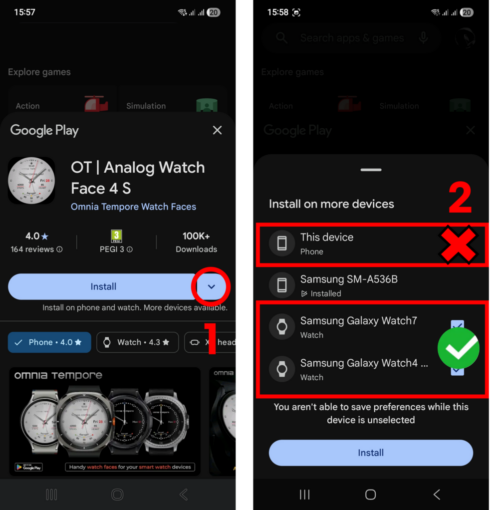
The phone app only serves as an add-on to make it easier to find a watch face on Google Play for Wear OS devices.
Both applications work independently.
The app installed on your phone is not needed, you do not have to install it at all, or you can remove it from your phone later.
The watch face should be transferred to the watch immediately or after a few minutes.
If the watch face does not appear after installation, please check the watch face on the installed Wearable app on your phone or directly on the watch.
To do this, try the following:
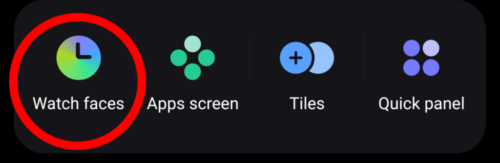
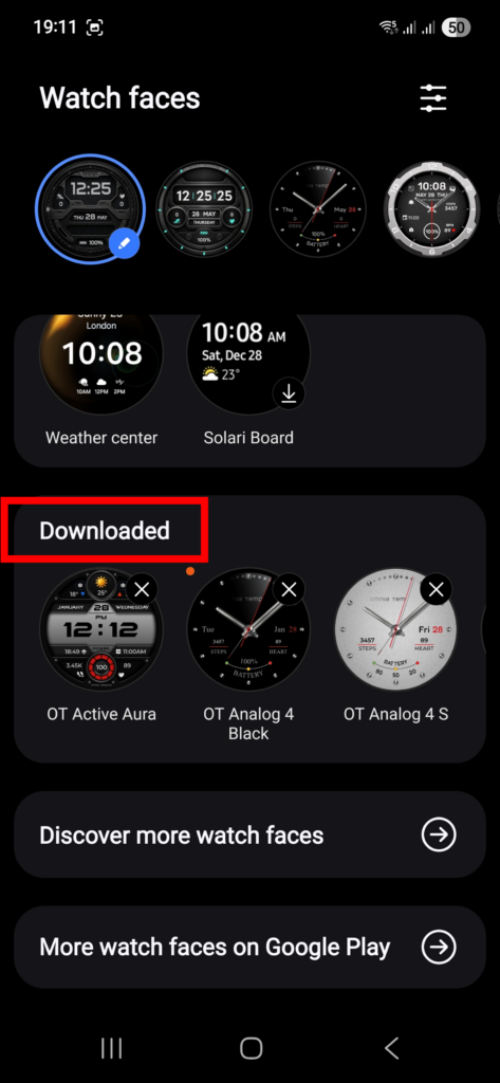
1 – Find the “Downloaded Watch Faces” in the Wearable app. Sometimes the new watch face appears among the other watch faces.
OR
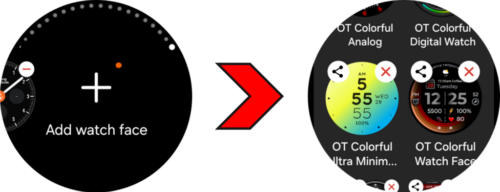
2 – You need to manually replace the current watch face with the installed one (on your watch).
To do this, you need to make a long tap on the center of your watch screen, then swipe to the right, then tap on the “+” icon.
In the screen that appears, find my watch face and select it.
INSTALLATION VIA WEB BROWSER
Alternatively, try installing the watch face from the Google Play Store via web browser on your computer or directly on your watch.
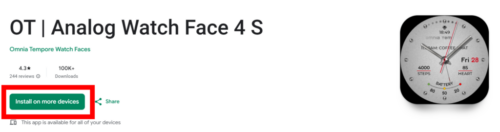
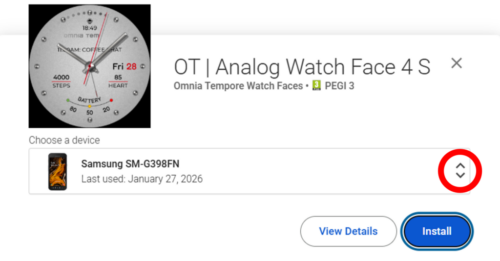
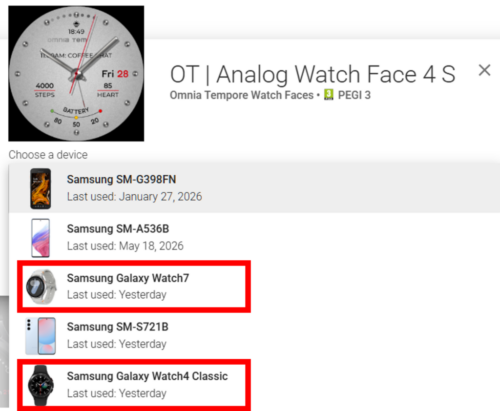
I also recommend restarting your watch after installing the watch face – this usually solves many problems associated with the installation process.
Please keep in mind that the installation process is entirely managed by Google Play and developers have no control over it. Any installation issues are not caused by the developers and/or watch faces.
Before writing a negative review due to installation issues, please read these instructions carefully or contact me via support e-mail: support@omniatempore.com